


Microsoft Forms does not offer its native file-upload question to external respondents through an “Anyone can respond” form. If customers or clients outside your organization need to attach a file, choose a collection workflow that supports that audience. Youform is one option for a public form with an upload question.
Updated against Microsoft and Youform documentation. Youform publishes this article. This is a documentation-based explanation, not a hands-on test of a Microsoft tenant or a newly completed upload.
Why Microsoft Forms file uploads exclude external users
Microsoft's upload-question documentation says file uploads are available only when responses are limited to people in your organization or specific people in your organization. Switching to “Anyone can respond” does not make that upload question public.
For internal collection, Microsoft Forms may already fit: the same guide explains upload limits and where to find files in OneDrive for Business. For external clients, treat a separate upload service or file-request link as a separate workflow; do not assume it changes the native Microsoft Forms restriction.
Use a public Youform to collect customer files
Youform's file-upload block collects attachments alongside the answers needed to identify the request. Uploads are not limited to images: choose the permitted file types for your form. The Free plan allows files up to 10MB each; Pro removes that per-file limit subject to fair use. Custom domains, branding removal, and partial submissions also require Pro.
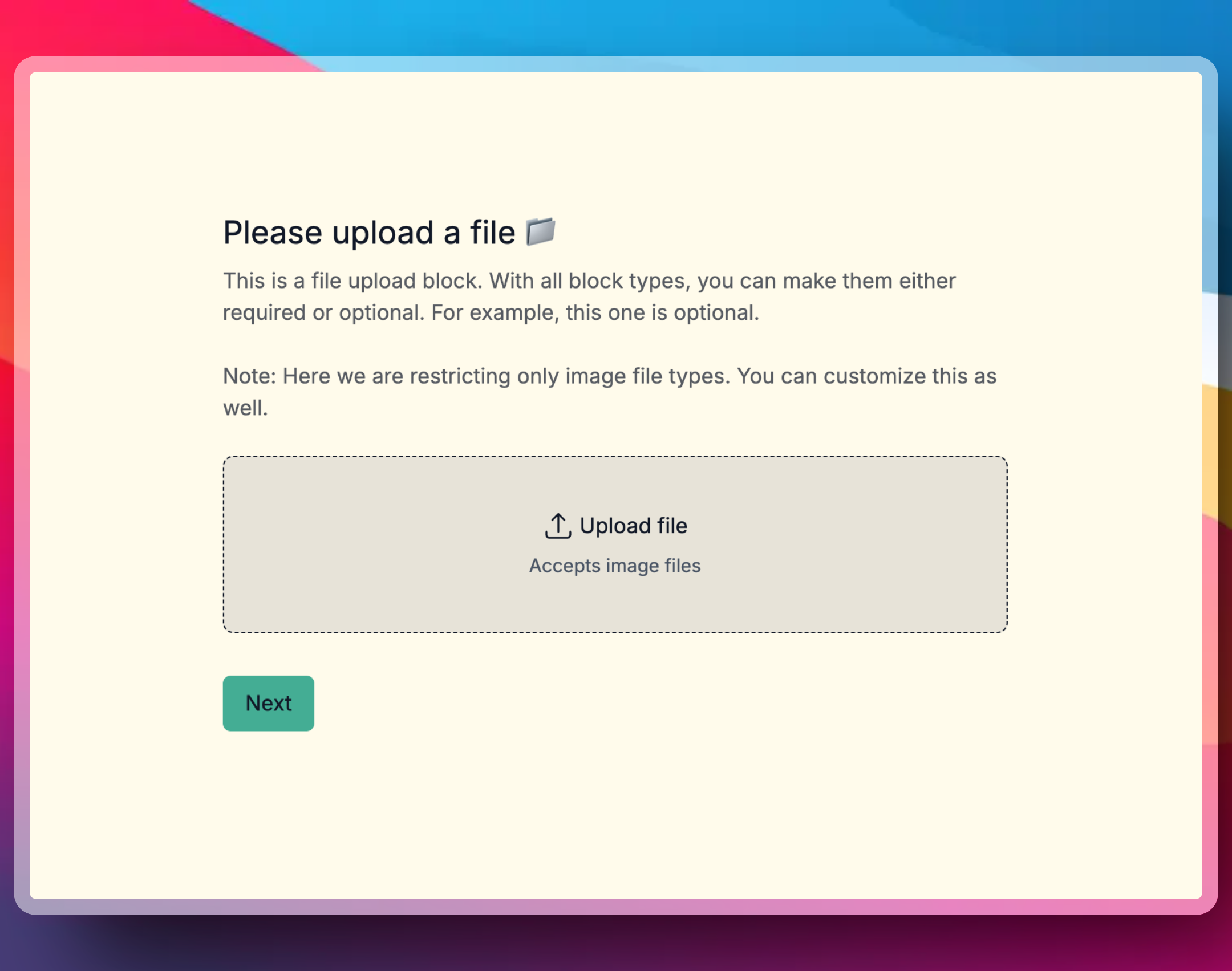
A design studio might ask for a project name, reply address, and a logo file. Explain the intended use and who will review it. For larger collections, agree which attachments are necessary and whether a shared-folder link better fits the handoff.
Set up an external file collection form
- Choose a starting point. Browse file-upload templates, or add an upload question to your own form.
- Explain the request. Name the file needed, its purpose, and any applicable format or size requirement. Make it required only when the request cannot be reviewed without it.
- Ask for useful context. Collect a project reference and the reply detail needed for follow-up. Avoid unrelated personal information.
- Assign the review. Choose who receives new-submission notifications and checks the attachment. Configure any storage or automation handoff separately.
- Share the respondent link. Use the public form link or embed the form on your website. Check the actual access settings before describing it as available to everyone.
When customers need instructions before uploading, create a landing page with Youform Pages. Explain which files you need, add contact details, and embed your upload form in one place. The page includes free hosting and analytics; the connected form keeps its normal upload limits and settings.
Check the file workflow before sharing
- Does the respondent link open for the intended audience without an organization-only login?
- Are the instructions, permitted formats, required state, and size limits clear?
- Can the responsible person find the submission and attachment?
- Is downstream storage, notification, or client-record mapping configured and tested?
- Have you explained retention and access according to your actual process?
Rebuilding the form does not automatically migrate Microsoft responses, files, or Power Automate flows. Check those dependencies separately. For a wider comparison, see Youform and Microsoft Forms.
Create a free Youform account to adapt a file collection form for your customers.