Google Forms Signature Guide
How to Add a Signature to Google Forms Free + ESIGN-Compliant
Google Forms doesn't have a native signature field, electronic or otherwise. Here's how to add a signature in Google Forms — and the simpler way to collect a real e-signature in a form, free and unlimited, with an IP + timestamp audit trail and a downloadable signed PDF.
Free forever · Unlimited signed submissions · No Google Workspace needed
Does Google Forms have a signature option?
Short answer: no, not natively. Google Forms has no signature question type, no electronic signature field, no draw-to-sign field, and no built-in way to bind a signature to a respondent. If you want a real signature in Google Forms — one that respondents can actually draw and that's tied to their submission — you have three workaround options. Each comes with its own catch.
Workaround 1: Install a Marketplace add-on
Add-ons like BoloSign, Signature for Google Forms, or formesign bolt a signature step onto your form. The respondent flow is rough: they hit a button that opens the add-on in a pop-out window, draw their signature in that window, copy the resulting image, then paste it back into a question on the original form.
The catch: entry tiers start at around $36/month and cap you at ~100 signed submissions. Most require a paid Google Workspace plan. The signing UX is a click-out-copy-paste loop most respondents will abandon — and the signature lives on the add-on's domain, not yours.
Workaround 2: Link out to DocuSign / HelloSign
Paste a DocuSign or HelloSign envelope URL into your Google Form's confirmation message. The respondent submits the form, then clicks the link to sign separately.
The catch: two disconnected systems. Google Forms can't tell whether the signature was ever completed — you'll spend the rest of your week reconciling form responses against DocuSign envelopes.
Workaround 3: Image upload field
Add a "File upload" question and ask respondents to upload a photo or scan of their handwritten signature. You'll get a JPG attached to their response in Google Drive.
The catch: it's not a real signature — it's a photo of one, drawn elsewhere, with no link to the actual submission. No IP, no timestamp binding, no audit trail. Most courts will laugh at this if you ever need to enforce it.
Why every Google Forms signature workaround falls short
All three workarounds share the same root problem: Google Forms was never designed to collect signed submissions. So you end up duct-taping a signature flow onto the form instead of into it.
💸 You pay a premium for a basic field
$36/month for 100 signatures is roughly 36¢ per submission — just to add one field type. That's before Google Workspace fees stack on top.
🪟 A click-out-copy-paste signing flow
The popular signature add-ons make the respondent click a button that opens a pop-out window, draw their signature there, copy the image, then paste it back into a question in the original form. Every extra step is a drop-off — and most respondents on mobile will quit before the second click.
⚖️ No legally defensible audit trail
Image uploads have no IP, no timestamp, and no tie to the submitter. ESIGN and UETA both expect a record that links the signature to the signer — a JPG in a Drive folder doesn't cut it.
📄 No signed PDF you can hand a client
You can't auto-generate a "here's what you signed" PDF from a Google Form. Respondents finish the flow with nothing in their inbox. Neither do you.
🎨 Broken brand handoff
Respondents fill out your form, then get bounced to an add-on's domain or a DocuSign envelope to actually sign. The handoff is where conversions die — and where signers get suspicious.
🏢 Google Workspace tax
Most signature add-ons (and most marketplace add-ons in general) require a paid Workspace plan. If you're on a free @gmail.com, half the options on the marketplace are off-limits.
🔌 Marketplace risk
Add-ons get pulled, repriced, or deprecated. When that happens, your signature flow stops working — and the signed records you collected are stuck inside someone else's tool.
A simpler way: a real signature field, built into the form
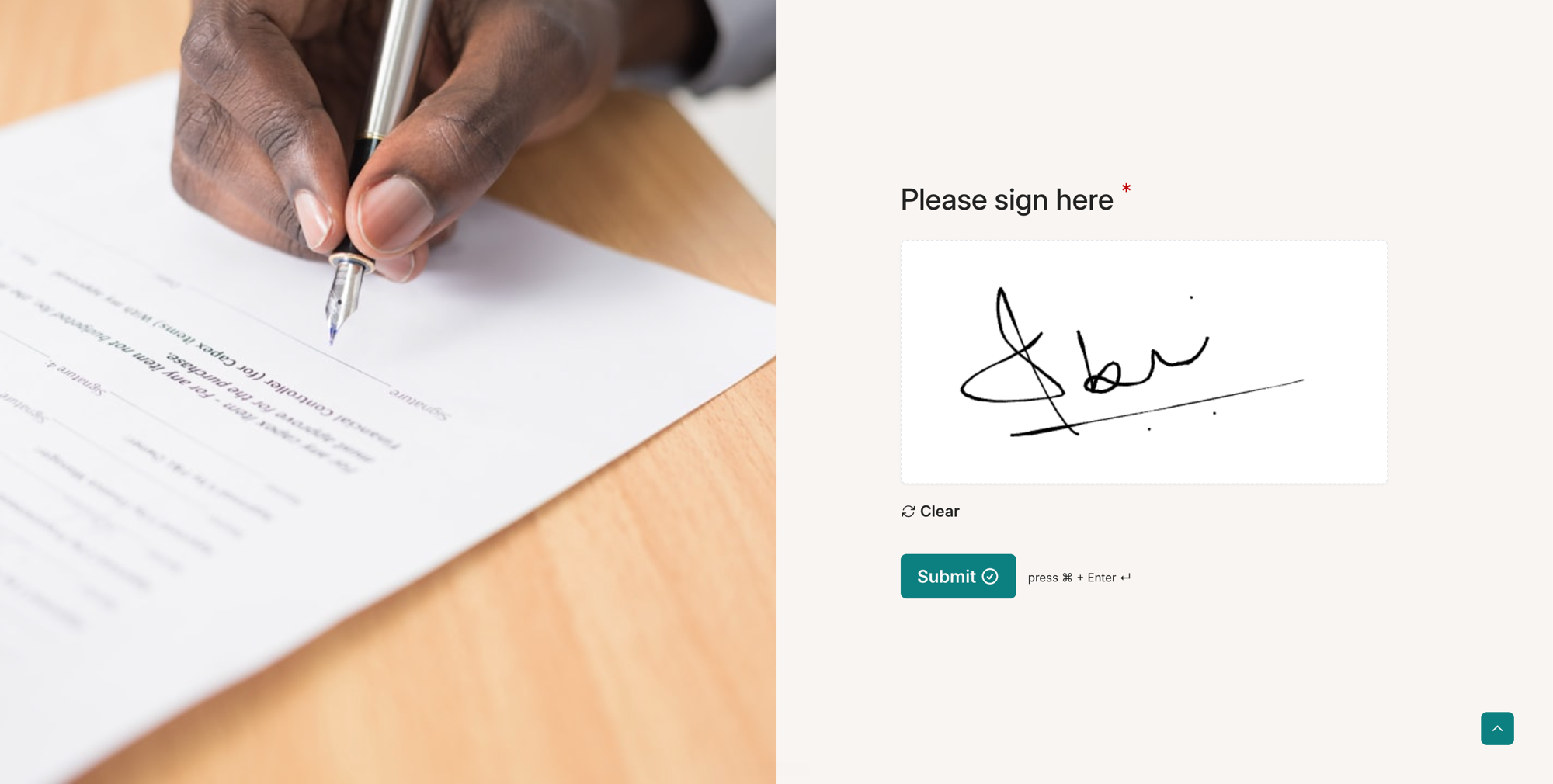
Youform is a free form builder with a native signature field. Respondents draw their signature inline — no pop-out window, no copying the signature image, no pasting it back into the form. Mouse, trackpad, or finger on mobile, all in one flow. Youform binds the signature to that submission with the signer's IP and timestamp. No add-on, no Workspace, no domain switch.
The signature pad lives inline with the rest of the form. Draw, hit Submit — done.
Try the signature form yourself
Here's a real Youform with a signature field. Fill in a few details, draw your signature, and submit — no signup needed.
Add signature collection in 3 steps
Drag a Signature field into your form
In the Youform builder, the signature block is right there in the field picker alongside text, email, and the rest. No installation, no OAuth.
Publish — that's it
Share the link or embed the form. Respondents see a clean signature pad inline with the rest of the form.
Get the signed record + PDF in your dashboard
Every signed submission lands with the drawn signature, the IP, the timestamp, and a downloadable PDF — all in one place.
Signature field is free on every plan — including the forever-free tier with unlimited forms and unlimited responses.
What you get vs. a Google Forms signature add-on
-
Free with unlimited signed submissions — no 100-submission cap, no $36/month entry tier, no per-signature charge.
-
Signature inside the form — respondents stay on your branded form. No redirect to an add-on, no DocuSign envelope, no domain switch.
-
IP + timestamp audit trail on every submission — the metadata ESIGN and UETA expect from an enforceable e-signature.
-
Auto-generated signed PDF — emailed to the respondent (and you) the moment they submit. Downloadable from your dashboard forever.
-
No Google Workspace required — runs on any account. Solo founders, freelancers, schools, nonprofits — anyone.
-
Mobile-native signing — respondents sign with a finger on iOS or Android. No app, no upload, no scanning.
Signature field free on every plan. Unlimited signed submissions. No credit card.
Every signature ships with the metadata to make it stick
Under the U.S. ESIGN Act and UETA — and the equivalent eIDAS framework in the EU — an e-signature is enforceable when you can prove three things: the signer intended to sign, they consented to do business electronically, and there's a record that ties the signature back to them. The third one is where most form-based signatures fall apart. Youform doesn't.
What Youform captures on every signed submission
Signer IP address
The IP the submission was sent from, logged at the moment of signing.
UTC timestamp
Down-to-the-second record of when the signature was drawn and submitted.
The drawn signature
Vector + raster copy of the signature as the respondent actually drew it.
Full submission record
Every answer the signer gave, frozen against the form version they signed.
Not legal advice — we're a form builder, not your lawyer. But every Youform signature ships with the same audit trail you'd build into a dedicated e-sign tool, so when you do ask your lawyer, they have something to work with.
Every signed submission comes with a downloadable PDF
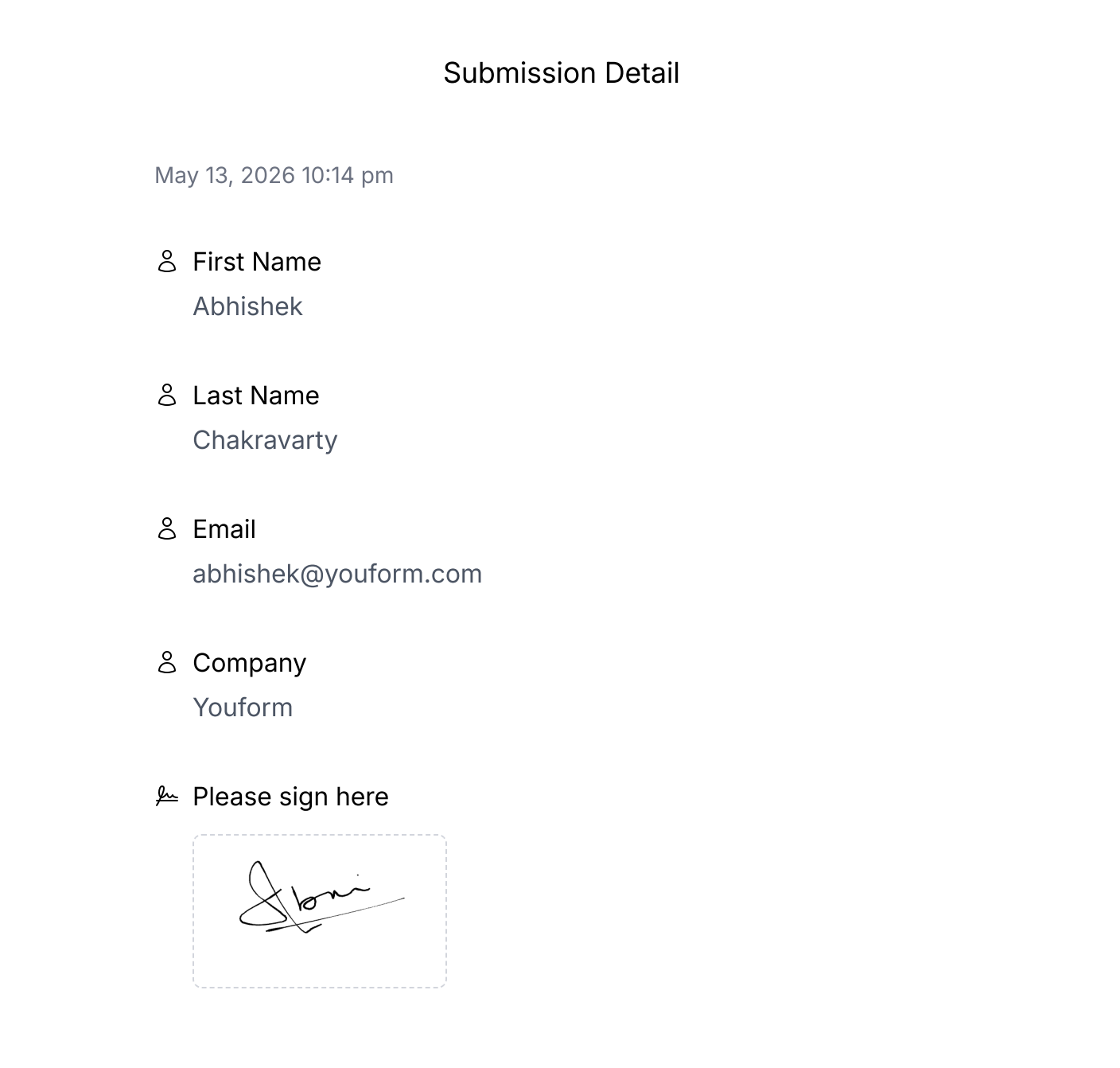
The moment a respondent hits Submit, Youform generates a clean PDF receipt of what they just signed — every question, every answer, the drawn signature, and the IP + timestamp at the bottom. Auto-email it to the signer. Auto-email a copy to yourself. Or download it from the dashboard whenever you need to hand someone a hard copy.
A real signed submission from a Youform — every answer, the drawn signature, and the timestamp at the top.
Auto-email to signer
The signer gets a copy of the signed PDF in their inbox immediately. Great for client agreements.
Download from dashboard
Every signed submission's PDF is one click away in the responses view. No add-on logins, no exports.
Send to Zapier / Drive
Push the signed PDF into Google Drive, Dropbox, or a CRM via Youform's 6,000+ integrations.
Already have a Google Form? Convert it in one click.
You don't have to rebuild your form from scratch to add a signature. Paste your Google Forms URL into Youform's free converter — we'll rebuild the form in Youform with every question, option, multiple choice, and logic branch intact. Then drag a signature field into the right place, publish, and you're done.
- ✅ Keeps your existing questions and order
- ✅ Preserves multiple choice, dropdowns, and short/long text
- ✅ Carries over conditional logic
- ✅ Free — no signup required to try the converter
Paste a Google Forms URL
Google Forms signature options vs. Youform
| Google Forms (image upload) |
Google Forms (signature add-on) |
Youform | |
|---|---|---|---|
| Real draw-to-sign field | ❌ | ✅ | ✅ |
| Signature inside the form (no redirect) | N/A | ❌ | ✅ |
| IP + timestamp audit trail | ❌ | Varies | ✅ |
| Auto-generated signed PDF | ❌ | Paid add-on tiers only | ✅ |
| Works without Google Workspace | ✅ | ❌ | ✅ |
| Mobile draw-to-sign | ❌ | ✅ | ✅ |
| Submission cap on entry plan | Unlimited | ~100/month | Unlimited |
| Cost to enable signatures | Free (but it's just a photo) | From ~$36/month + Workspace | Free |
Add-on pricing reflects published entry-tier pricing across popular Google Forms signature add-ons at time of writing. Verify current limits before signing up.
Loved by 70,000+ users
What our users say
Frequently Asked Questions
Can Google Forms collect signatures?
Not natively. Google Forms has no built-in signature field. To collect signatures you have to install a third-party Marketplace add-on, link out to a separate e-sign service like DocuSign, or paste a signature image into a Google Doc generated from the response. All three are workarounds with limits — most add-ons start at ~$36/month and cap you at 100 submissions on the entry tier. Youform has a real signature field on the free plan.
How much do Google Forms signature add-ons cost?
Most third-party Google Forms signature add-ons start at around $36/month, and the entry tier is typically capped at 100 signed submissions. You'll also need a paid Google Workspace account on most plans. Youform includes a real signature field on the free plan with unlimited submissions and no Workspace requirement.
Are e-signatures collected through a form legally binding?
Under the U.S. ESIGN Act and UETA — and the equivalent eIDAS framework in the EU — an e-signature is enforceable when you can show intent to sign, consent to transact electronically, and a record that ties the signature to the signer. Youform captures the signer's IP address and timestamp with every submission and stores the signed record as part of the response, which is the audit trail those laws look for. We're not your lawyer — but every Youform signature ships with the metadata you'd need to defend it.
Does Youform generate a signed PDF of the submission?
Yes. Every signed submission can be downloaded as a PDF that includes the form questions, the respondent's answers, the drawn signature, and the IP + timestamp audit trail. You can also auto-email the PDF to the respondent and to yourself the moment they submit.
Is the Youform signature field really free?
Yes. The signature field is included on Youform's forever-free plan with unlimited forms and unlimited responses. There's no per-signature charge, no submission cap, and no Google Workspace requirement. PDF receipt generation is included too.
Can I migrate an existing Google Form to Youform and add a signature field?
Yes — and it's one click. Paste your Google Forms URL into Youform's free Google Forms converter. It rebuilds your form in Youform with questions, options, multiple choice, and logic intact. Then drag a signature field into the form, publish, and you're done. See also the full Google Forms alternative comparison.
What's the difference between a signature image upload and a real e-signature field?
An image upload is just a file — the respondent draws or photographs their signature elsewhere and uploads the file to your form. A real signature field captures the signature live, draws it inline with the mouse or finger, and binds it to that submission's IP and timestamp. Google Forms only supports the image-upload workaround. Youform supports the real signature field.
Can you add a signature in Google Forms?
Not as a native field — Google Forms has no built-in signature question type. You can fake it three ways: install a paid Marketplace add-on like BoloSign or formesign, link out to a separate e-sign service like DocuSign in the confirmation message, or add a File Upload question and ask respondents to upload a photo of their handwritten signature. All three are workarounds. For a real inline signature field that binds the signature to the submission, use Youform — it's free and unlimited.
How do I add an electronic signature to a Google Form?
Google Forms doesn't have an electronic signature field built in, so you'll need a third-party add-on like Signature for Google Forms by BoloSign, or you'll need to redirect respondents to an e-sign tool like DocuSign or HelloSign after they submit. Add-ons typically start at around $36/month and cap you at 100 signatures on the entry tier. The simpler path is to switch to a form builder that has a native electronic signature field — Youform includes one on the free plan with unlimited signed submissions and an IP + timestamp audit trail.
Collect signed submissions, for free
Drag in a signature field, publish, and start collecting legally defensible signed submissions with PDF receipts. Free, unlimited, no Workspace needed.
Create free accountFree forever · Unlimited signed submissions · No credit card required
Scrolled so much still not sure?
Let your favorite AI tell you if Youform is the right fit.
Already made up your mind?
Sign up nowLegal
🔒 Data securely stored with AWS in EU 🇪🇺